
Pop-up/In-app: Creating and managing pop-ups/in-apps
To create a pop-up/in-app, go to Pop-ups/in-apps option from the main navigation bar.
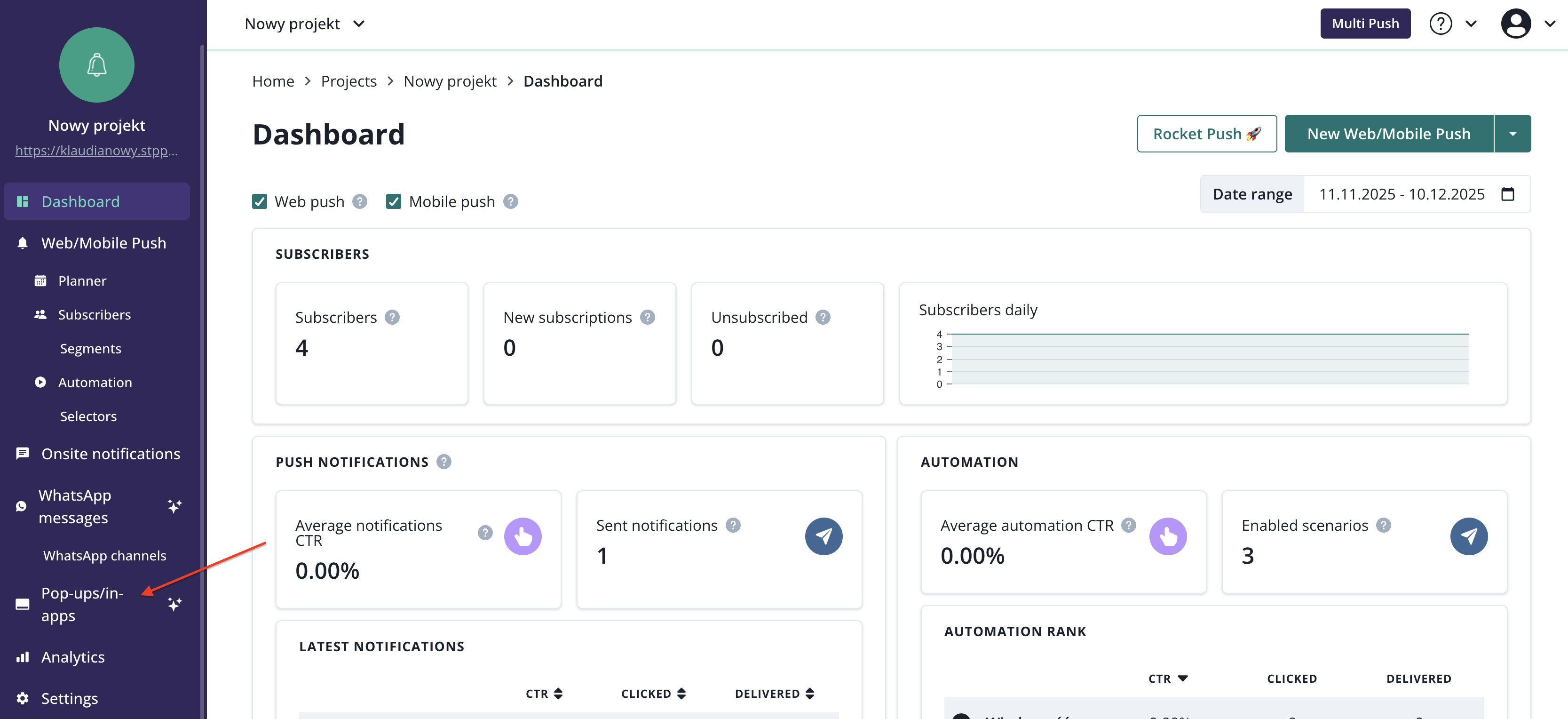
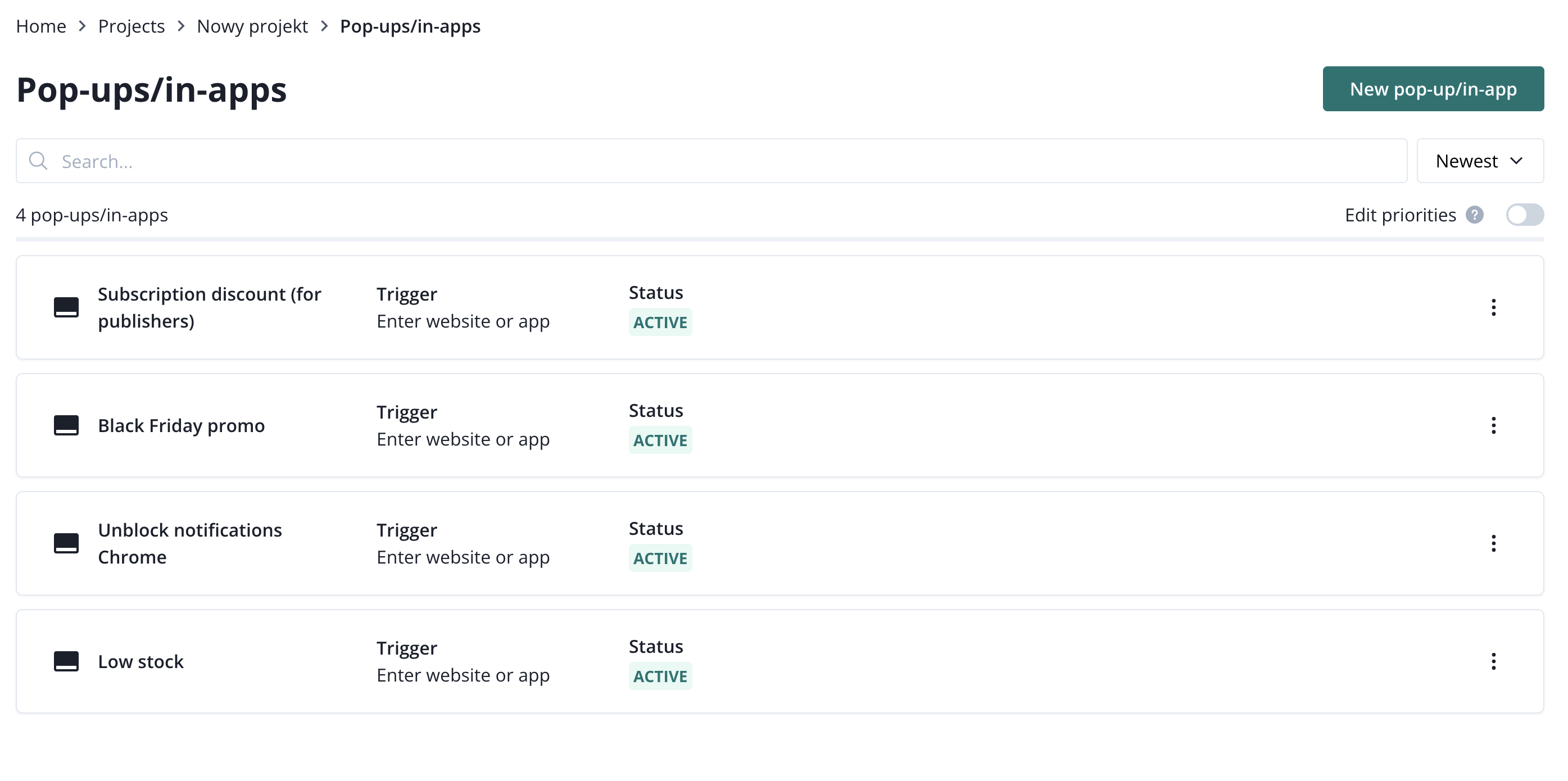
You will land on pop-up/in-app list.
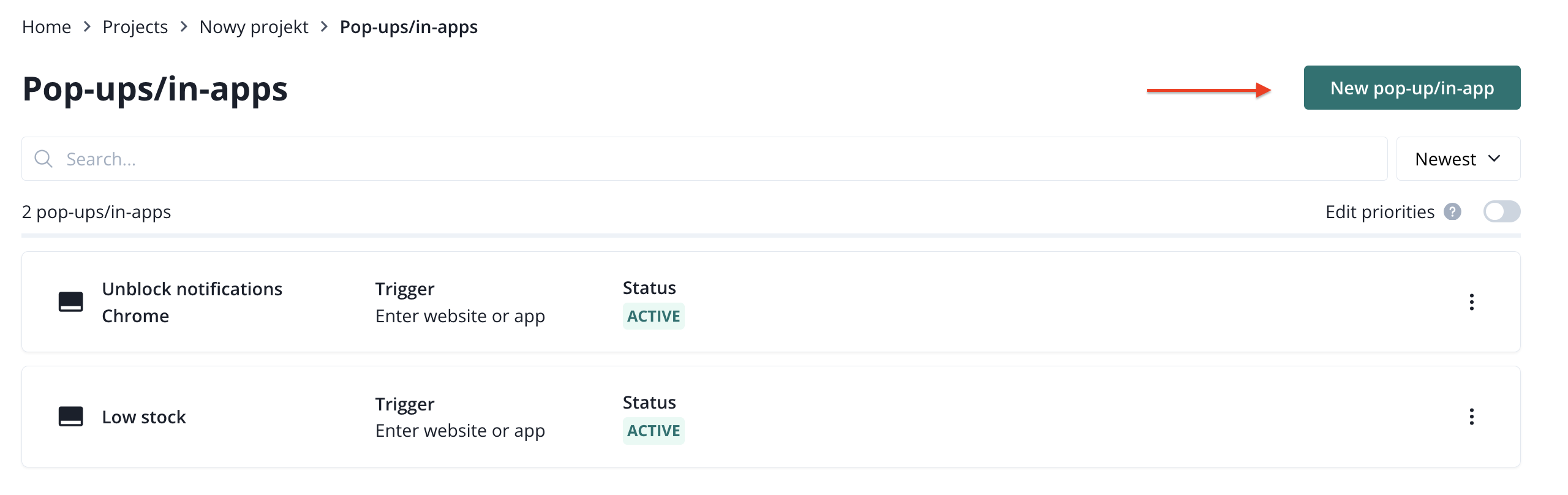
Now, click on the New pop-up/in-app button in the upper right corner.
You will see eight pop-up/in-app templates that you can use.
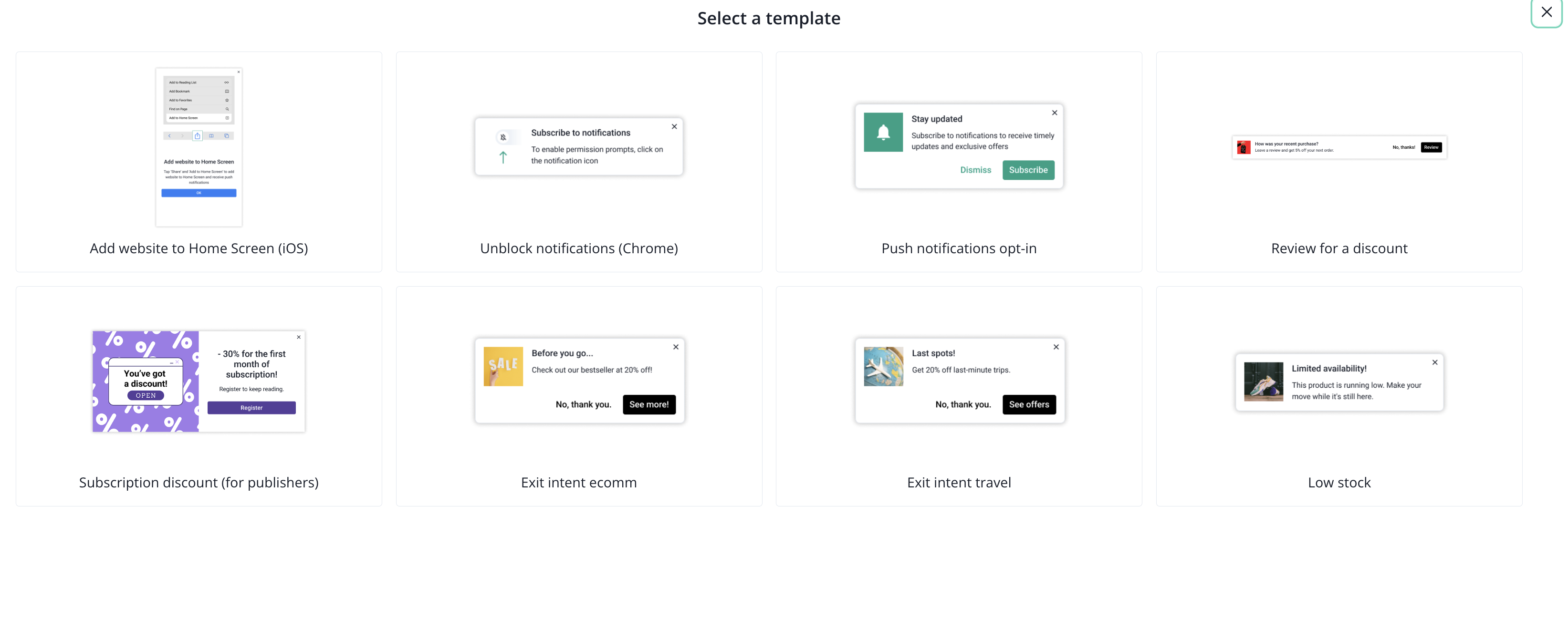
Once you select a template, you can change the image, content, and buttons, but not the general shape or other elements inside the pop-up layout.
As we develop this feature, we will add the option to create a layout from scratch, giving users more flexibility.
Available templates reflect use cases that our customers reported as most needed. For example, you can use pop-ups/in-apps to request unblocking web push notifications in Google Chrome, or adding your website to Home Screen (iOS). Others were designed for websites with purchase processes; to boost your conversions, save abandoned carts, and require other actions from your users, like asking for reviews.
After selecting the pop-up/in-app template for your use case, click on it to tweak its style and content. Start from naming your pop-up/in-app.
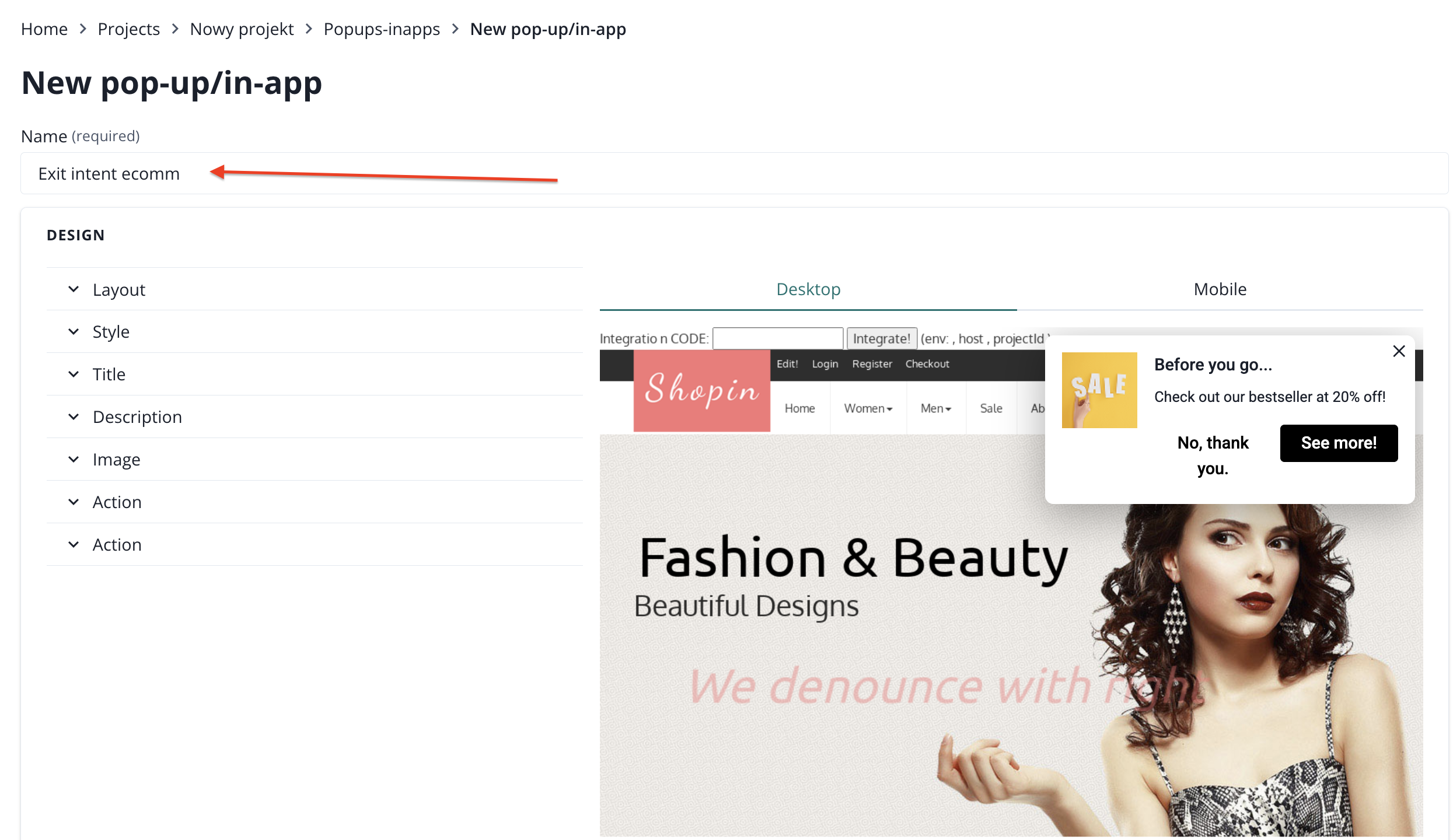
In this example, you can edit:
- layout (precise placement on your website),
- style (color, corner radius, border, font, close icon button, icon color and size, animation, drop shadow, overlay),
- title,
- description,
- image (you can hide it on mobile devices),
- action (action type, including custom js),
- action.
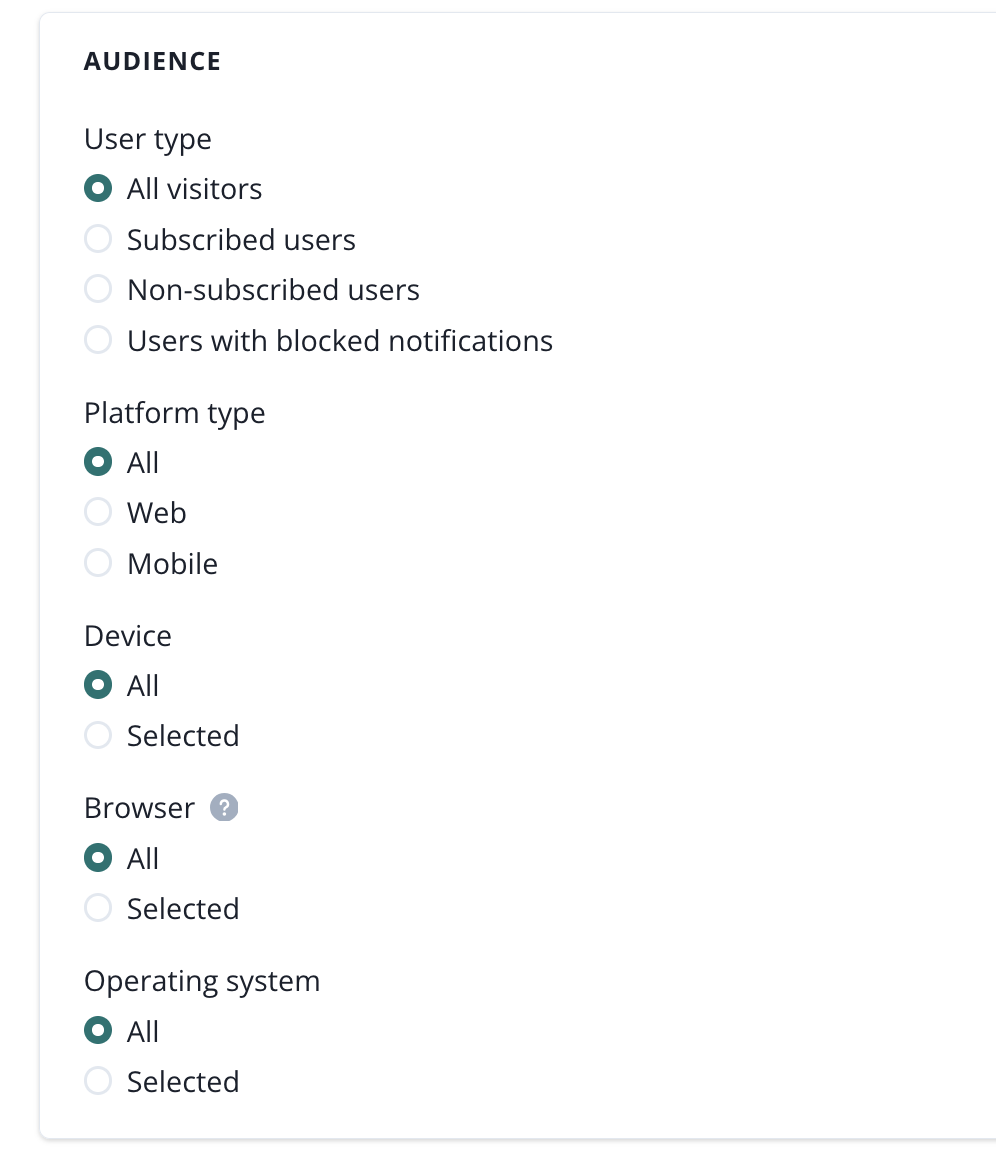
Choose your audience.
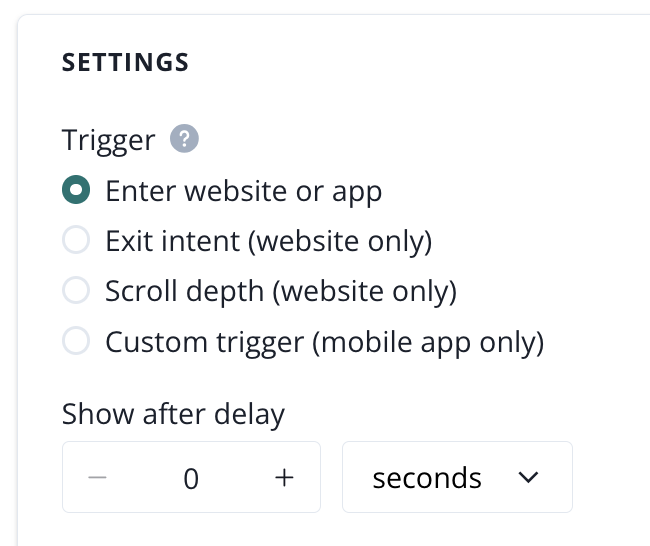
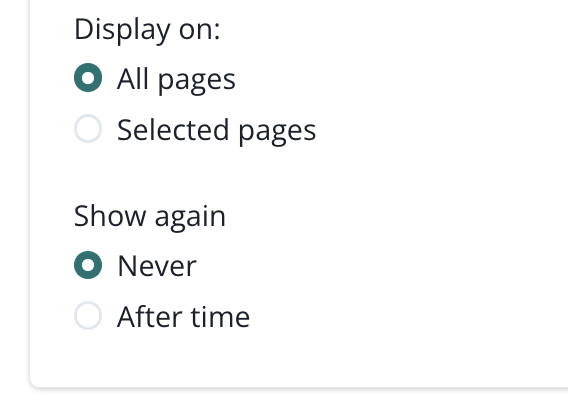
Now, you can select the trigger, display, and how many times the pop-up should appear to the same user and wether it should be always active or only between chosen dates.
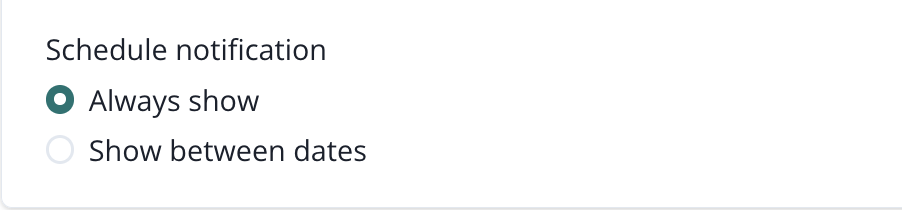
Once you are done, hit Create pop-up/in-app.
The system will ask you to confirm whether the pop-up/in-app should be published immediately or only created.
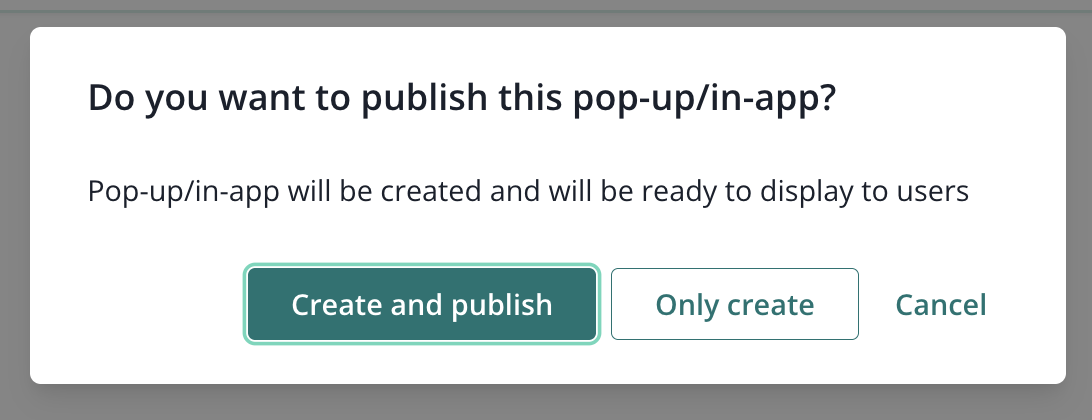
Edit pop-up/in-app
To edit an existing pop-up/in-app, access the pop-ups/in-apps list by clicking on Pop-ups/in-apps on the main navigation. Now, choose the pop-up/in-app to edit and click on three dots.
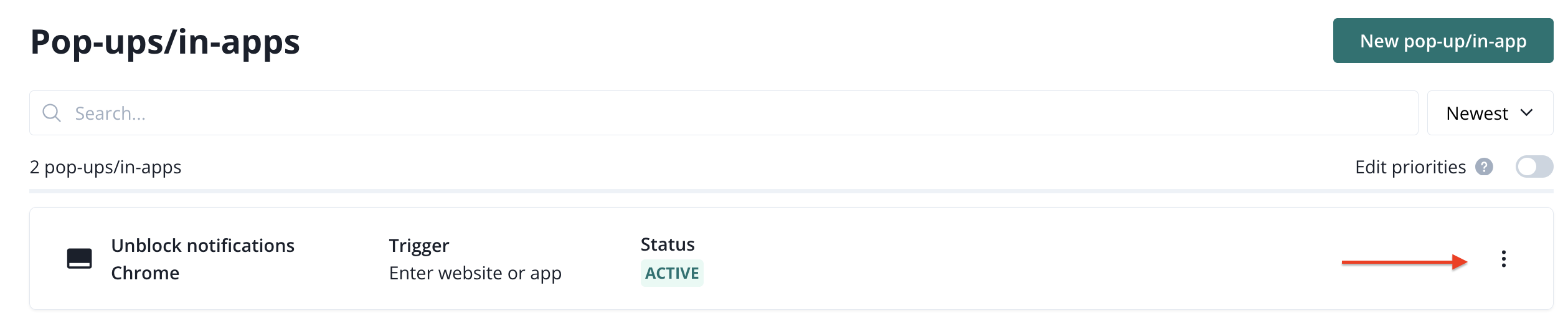
You will see the drop-down list with an option to edit.

You can tweak every setting that was available during the creation of the pop-up/in-app. After you are done, hit Save changes.
Pop-up/in-app report
In the Pop-up/in-app report you will find details and statistics of your pop-up/in-app.


Pop-up/in-app list
On the pop-up/in-app list you will find all pop-ups/in-apps that you have created.
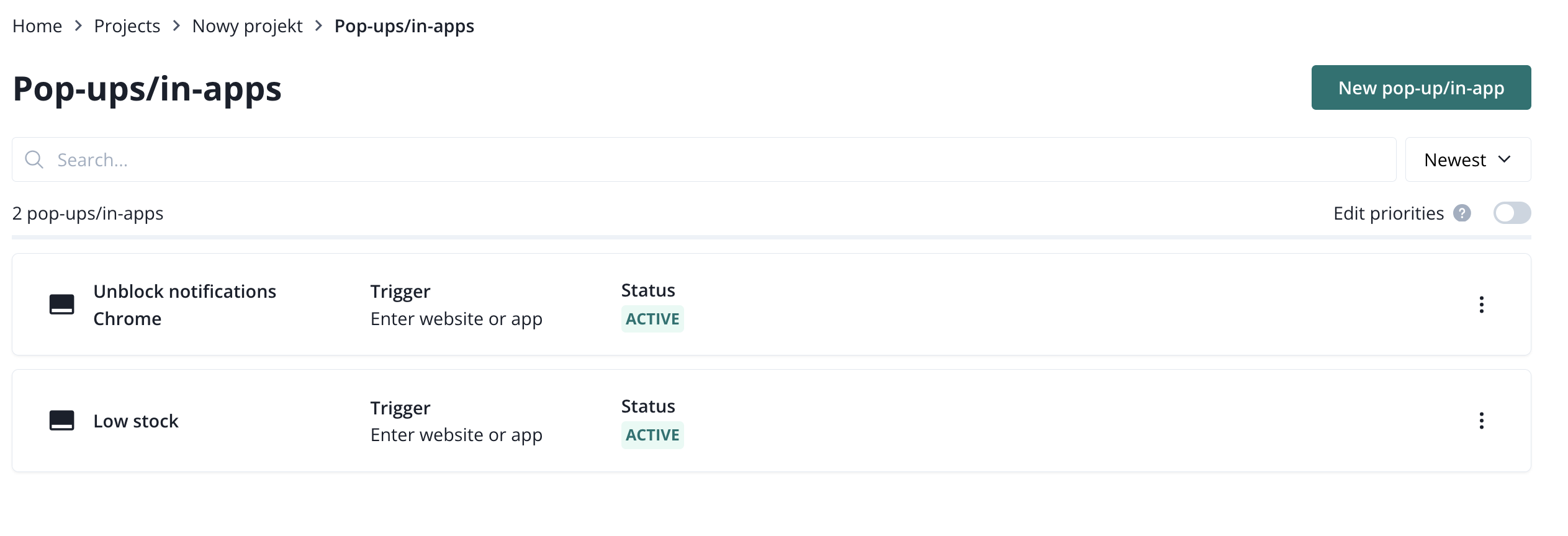
On the list, you can see each pop-up's/in-app's name, trigger, and status. You can edit pop-ups/in-apps and access additional options by clicking on the three dots.
You can search pop-ups/in-apps by name, sort them by newest or oldest, change their status (enable/disable), or edit their content and settings.
There is an option to create a new pop-up/in-apps from here, by clicking on the New pop-up/in-app button in the upper right corner of the screen.